This guide describes practical considerations, common equipment options, and basic troubleshooting steps for providers delivering care from home. It is intended to help providers make informed decisions about their own setup; it does not recommend specific products, vendors, or configurations, and it is not a substitute for guidance from an organization’s IT department or compliance office where one is available.
Delivering Virtual Care from Home: Foundational Considerations
Presentation and Building Rapport
For some patients, virtual care is one modality among several used for ongoing care. For others, it may be their first or primary point of contact with a provider. In either case, being seen and heard clearly is a basic condition for a functional visit: positioning the camera so that the provider is fully in frame, ensuring adequate lighting, and using clear audio all contribute to a patient’s ability to communicate effectively during the encounter.
Patients often choose or require virtual care for reasons that have little to do with preference for the modality itself; some contributing factors may be a lack of transportation, inability to leave work or home responsibilities, privacy concerns tied to reliance on others for transportation, or distance from a place of care. Because virtual visits may be the only accessible option for some patients, providers should consider how their home setup affects the consistency and clarity of the encounter.
Privacy and Confidentiality
Providers are responsible for protecting patient privacy and confidentiality regardless of where care is delivered. Delivering care from a home setting introduces considerations that may not arise in a clinical facility, including who else may be present or within earshot during a visit, whether the physical space allows the screen and audio to remain private, and whether the home network itself introduces additional exposure.
Providers connecting from public or shared wireless networks (for example, a coffee shop, library, or shared workspace) take on additional privacy and security risk compared to a private home network, since traffic on public networks is more easily intercepted and the physical space is inherently less private. Be sure to check and follow your organizations policy around acceptable network and care locations, if it exists; where no policy exists, providers may want to treat public networks as unsuitable for clinical encounters.
Your Internet Connection:
Wireless vs. Wired Connections
Home and organizational wireless (Wi-Fi) connectivity has improved substantially over the past several years and is generally sufficient for most telehealth encounters. A wired (Ethernet) connection, where available, typically offers a more stable and consistent connection than Wi-Fi, since it is not subject to interference from walls, distance, or competing wireless devices. Where possible a wired connection is generally preferable for care delivery.
A wired connection can generally be established in a few ways:
-
Connecting directly into the computer: most desktop computers and many laptops include a built-in Ethernet port. For laptops without one, a small USB-to-Ethernet adapter can generally provide the same connectivity.
-
Connecting through a docking station: many docking stations that support external monitors, a keyboard, and a mouse can also pass Ethernet connectivity through to a docked laptop.
Securing Your Connection
Virtual Private Network (VPN)
A virtual private network (VPN) allows a provider to access an organization’s network resources and applications from home as though directly connected to the organization’s own network, and adds a layer of protection to network traffic in transit. VPN access is generally provided and configured by an employing organization; where no organizational VPN is available, individual VPN services can be purchased separately, though these serve a different purpose (general traffic protection) than an organization-configured VPN, which may also provide access to internal systems.
EHR and Application Access
Delivering virtual care typically requires access to patient information housed in an electronic health record (EHR), in addition to whatever platform is used to conduct the visit itself (video conferencing software, a remote patient monitoring platform, or similar). Many organizations use telehealth applications that are embedded within, or at least integrated with, their EHR; others use separate systems that require a provider to work across two applications during a visit. Providers may want to confirm with their organization how EHR access is provided from a home setting. For example, knowing whether a telehealth encounter requires the VPN described above, a web-based portal, or a separate remote-access tool before planning their first home visit.
Optimizing Your Service Delivery:
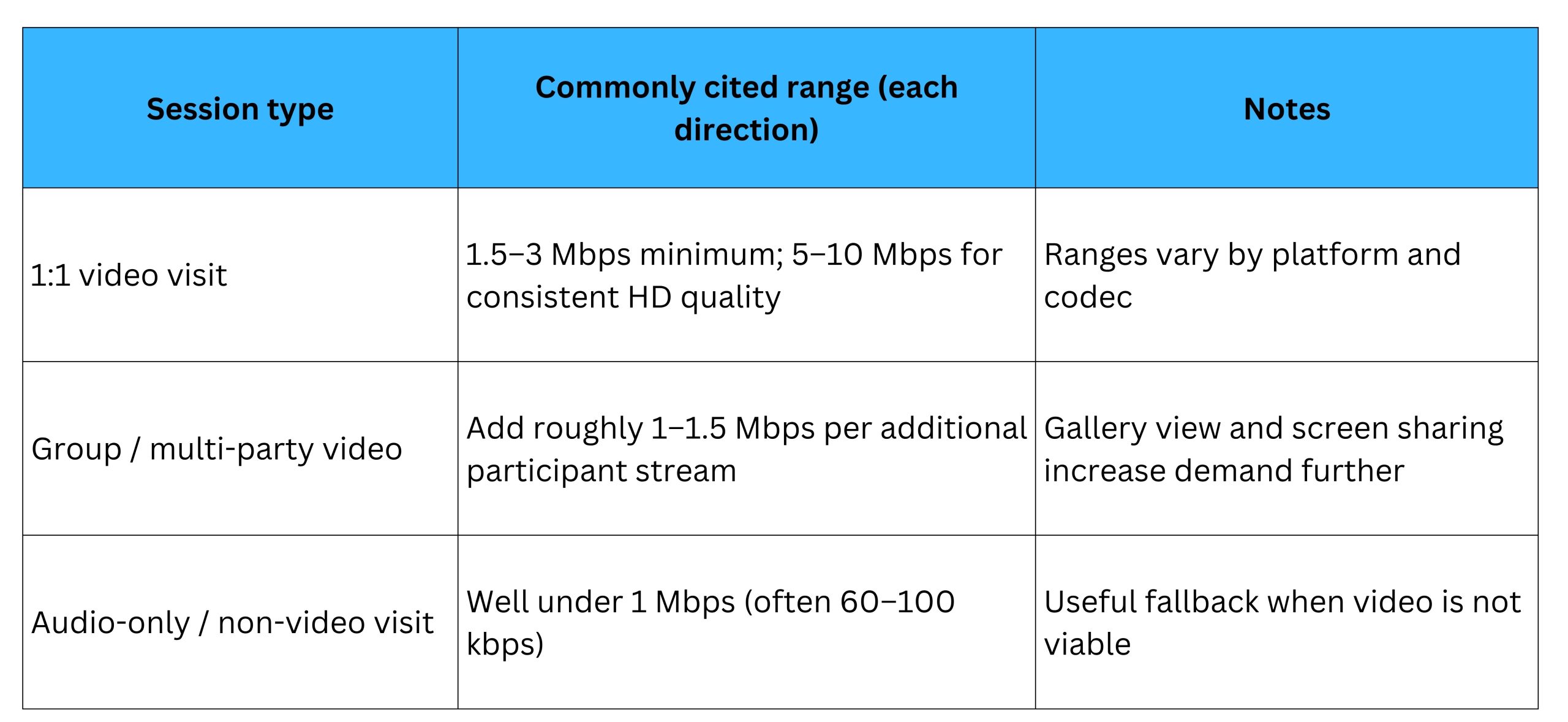
Bandwidth and Quality Requirements by Session Type
Minimum bandwidth requirements vary by platform, video resolution, and number of participants, so any specific figures should be treated as general reference points rather than fixed requirements. Published guidance commonly cites the following approximate ranges:
Essential Equipment
Internet Equipment
-
Modem: Typically provided by the internet service provider (ISP). Slow speeds are often traced to outdated firmware or aging modem hardware rather than the underlying internet plan itself.
-
Router: Converts the ISP’s incoming connection into a wireless network accessible to other devices in the home. As with modems, an aging or infrequently updated router can limit the speed and stability actually available to connected devices, independent of the ISP plan.
Cameras
For laptop users, an external USB webcam is generally considered an improvement over a built-in laptop camera, which is often lower resolution and fixed at an awkward angle relative to the user’s eye line. Some cameras have advanced features such as multiple microphones for noise cancellation, AI-optimized user tracking, enhanced virtual or physical lighting, and pan-tilt-zoom functions.
AnkerWork B600 Video Bar – TTAC, Insta360 Link 2 – TTAC, and IPEVO TOTEM 120 – TTAC. Note: Devices continue to be released by manufacturers, so these devices are merely representative of options on the market.
Microphones
A dedicated USB headset or speaker/microphone device can improve both how clearly a provider hears the patient and how clearly the provider is heard, which contributes to the rapport and communication considerations described earlier in this guide.
Wired Speakerphones – TTAC, Wired USB Headset – TTAC, and Jabra Speak2 40 – TTAC. Note: Devices continue to be released by manufacturers, so these devices are merely representative of options on the market.
Provider Devices
-
Laptop: Provides a versatile, generally stable audio and video platform, and typically also provides access to other needed programs and resources such as the EHR and any telemedicine peripherals.
-
Tablet: Can be used for telehealth encounters and generally offers a large screen, an adequate built-in camera, and adequate audio. Tablets tend to excel at a single dedicated task — running one telehealth application or serving as a video endpoint — but can be more difficult to pair with external telehealth peripherals, and any external video or audio accessories used with a tablet may or may not be centrally managed by an organization’s IT department.
-
Mobile phone: Generally best suited to receiving a call or notification rather than conducting an extended visit; the small screen can make multitasking difficult for either the provider or the patient, even though phone cameras are often of high quality. Mobile phones, or a traditional telephone/speakerphone, are commonly kept on hand as a fallback if the primary video connection fails during a visit.
Device Docking:
Laptops and tablets can be great tools, but the limiting factor for them is often a single screen. TTAC recommends two screens for Telehealth encounters. This allows you to keep one screen dedicated to the video interaction with the patients and the other screen available for documenting the encounter in your EHR platform. An additional screen can be used with a simple HDMI/USB-C connection to an external monitor, but having a dedicated solution for all docking peripherals is recommended. Docks provide a hub that all peripherals can be statically connected to, and the provider’s device can use a single connection to access them all: displays, webcam, speakerphone/headset, keyboard/mouse, etc.
-
As a docking solution often allows for internet passthrough via an Ethernet port, TTAC recommends using a name-brand docking solution or one that has been reviewed by your IT/Cybersecurity team to ensure that no tampering with the connection is done by the dock itself.
Workflow Optimization
Beyond the connection and hardware itself, providers may want to consider a few workflow questions specific to a home setting:
-
Are two screens needed — one for interacting with the patient and one for documentation — or can a single screen support both without disrupting the visit?
-
Are other professional tools or reference materials (clinical references, scheduling systems, interpreter services) readily accessible during a home visit in the same way they would be in a clinical setting?
Basic Troubleshooting for Common Connection Issues
The following are common, provider- or user-level troubleshooting steps for connection issues encountered during home telehealth visits. They are not a substitute for organizational IT support where that support is available.
Software and App Updates
Most telehealth applications tolerate minor version mismatches between a provider’s and a patient’s devices without issue, but some platforms require the provider’s app to be updated to a current version before a visit can proceed. Checking for pending updates before a scheduled visit, rather than during it, can help avoid delays.
Browser-Based Platforms
For telehealth platforms accessed through a web browser rather than a dedicated application, keeping the browser itself (Chrome, Microsoft Edge, Firefox, or similar) up to date is a comparable consideration, since browser-based platforms depend on current browser versions to support the audio and video features a visit requires. Some browser-based platforms and applications may not work, or may work better on certain browsers.
Router Firmware and Age
Wi-Fi routers run internal software (firmware) that receives periodic updates, generally for security purposes; a router will typically pause service briefly while installing these updates. Wireless communication standards also change roughly every four to five years, but routers are often treated as a fixed household appliance and replaced only when they stop working outright. This can leave a household router using an older, slower wireless standard than the devices connecting to it — in which case the effective connection speed is limited by the slower of the two.
Camera and Microphone Permissions and Privacy Controls
Most web browsers and operating systems include safeguards that prevent applications or hardware from being used without a user’s explicit permission. For example, using a webcam typically requires both an operating-system-level permission (allowing applications generally to access the camera) and a browser-level permission (allowing a specific website to access the camera for that session). Both permissions generally need to be granted for a website-based telehealth platform to access the camera or microphone.
Additional Resources:
https://telehealthresourcecenter.org/resources/fact-sheets/consumer-broadband-fact-sheet/
https://telehealthresourcecenter.org/resources/fact-sheets/commonly-used-patient-portals/
Prepare for a Remote Visit | Northeast Telehealth Resource Center